

Elevate your store’s storytelling with Athora - Premium Shopify theme. Move at the speed of modern retail! Try Theme Free →  

Header background

Color/Image swatches

Lucy

Written by Lucy

Last updated

24 views

On this page


By default, variant options such as colors may appear as plain text or just gray circle. If you would like to display them as color swatches or image swatches, please follow the instructions in this document.

1. Color swatches

Step 1: You need to assign a category to the product.

That category must include a color metafield so the product can inherit that color metafield.

Step 2: Connect your Color variant with Shopify Colors

In Step 1, you already assigned a Shopify category that includes color metafield. Because of that, you can now connect your product color variants with the Shopify color system.

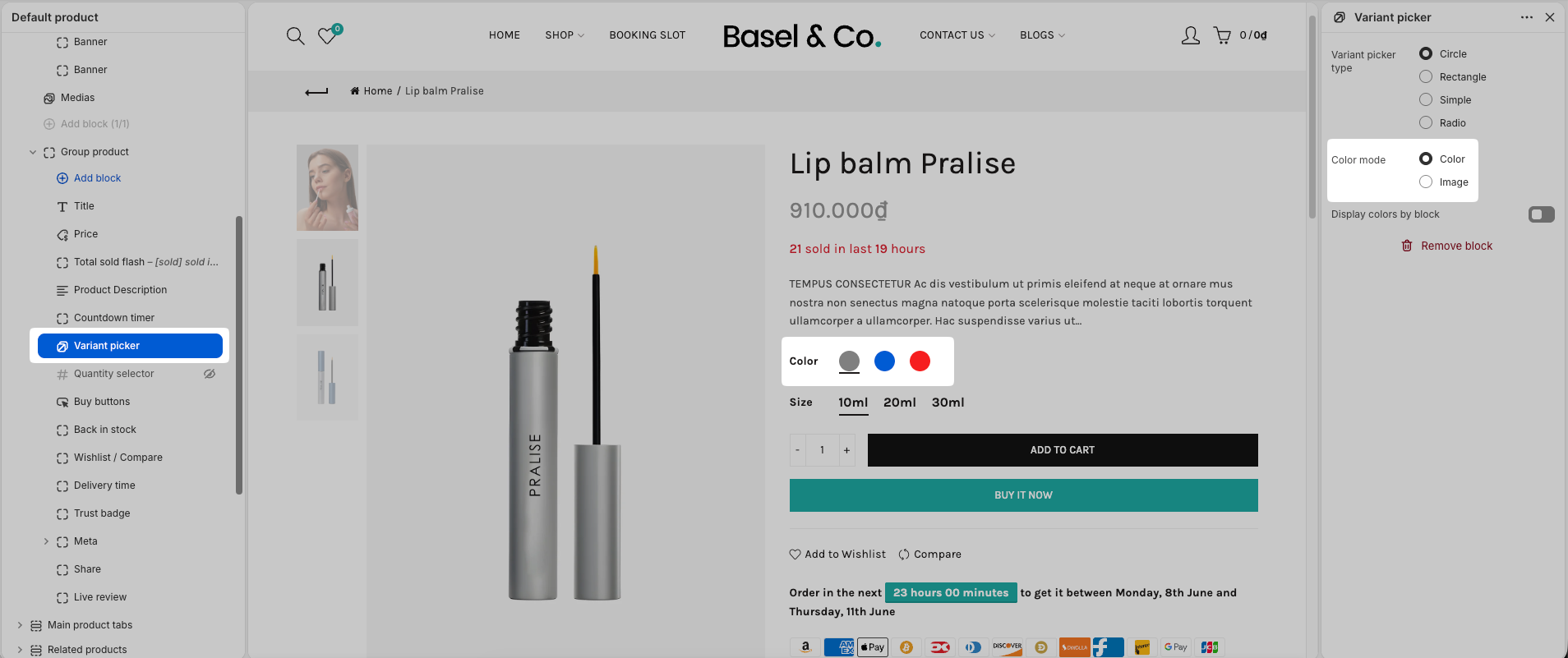
Step 3: Choose Color Mode

In the Theme Editor, set the Color Mode to Color.

After that, your color variants will be displayed as color swatches.
SCR-20260526-oydc.png

2. Image swatches

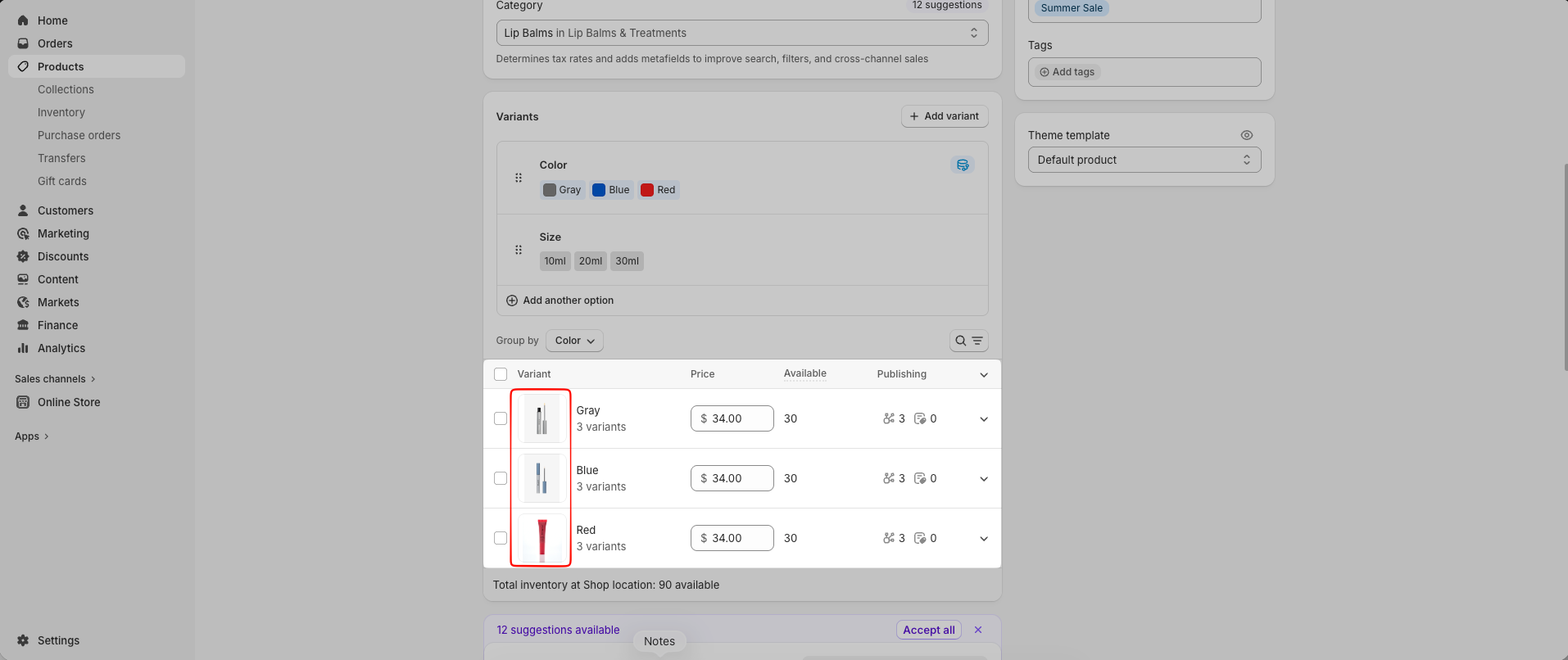
Step 1: Please add an image to each variant in your Shopify admin.
SCR-20260527-iygj.png

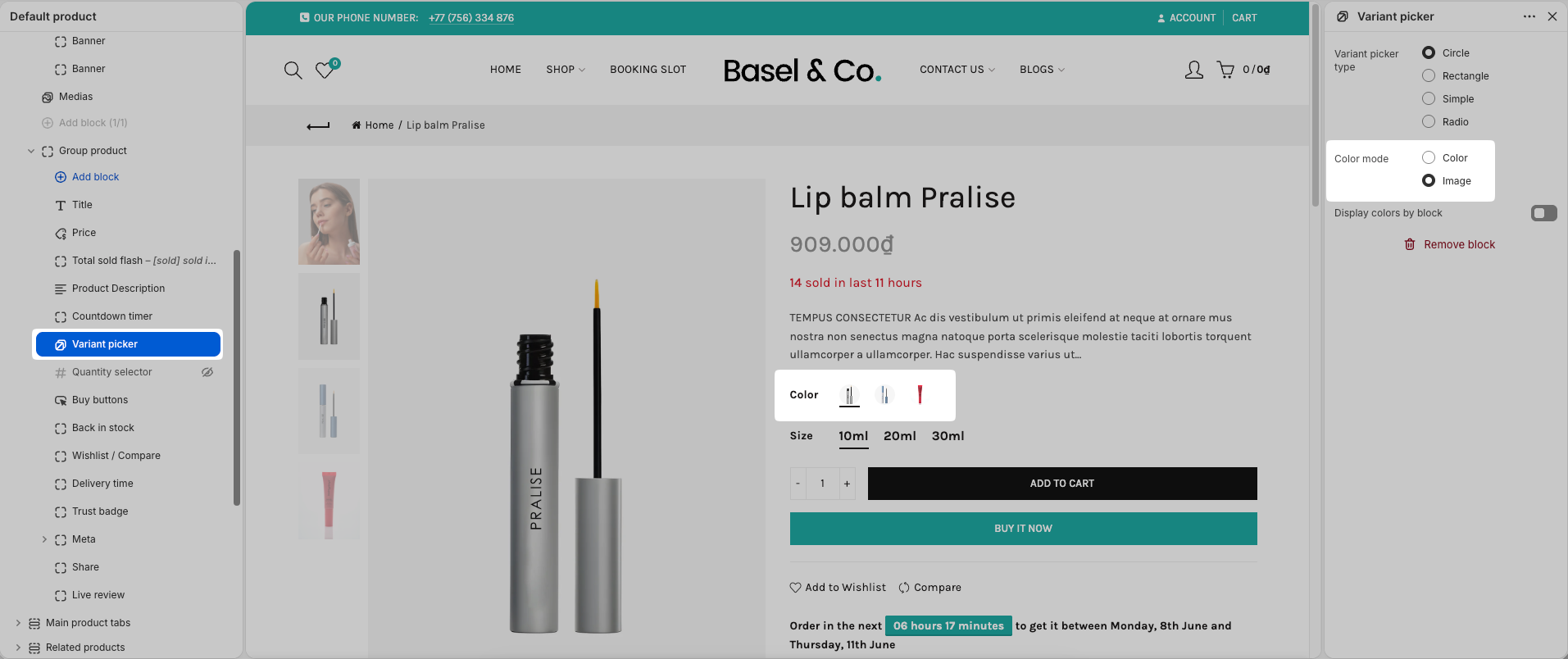
Step 2: In the theme editor, set the Color mode to Image.
SCR-20260527-iywy.png

🎁 Exclusive Deals for The4 Customers

EComposer

🎉 EComposer – Free 6-Month Plan

Build landing pages, sales funnels, and more with drag & drop.
The4 users get 6 months free (save $150) on Standard plan.

  • ✅ 400+ templates ready to use
  • ✅ AI powered page building toolkits
  • ✅ Build any Shopify page
  • ✅ No coding required
🔓 Get 6 Months Free
SectionAI

🤖 EcomRise: Upsell & Bundles

Boost sales effortlessly with product bundles, upsell and cross-sell, buy X get Y, volume discounts

  • ✅ Easy upsell & cross-sell
  • ✅ Works with the latest themes
  • ✅ Trusted by 10k customers
🚀 Get 6 Months Free

Enjoy a free 3-day trial. Then get your first month for $1. Try Now

We uses cookies to ensure you get the best experience on our website.