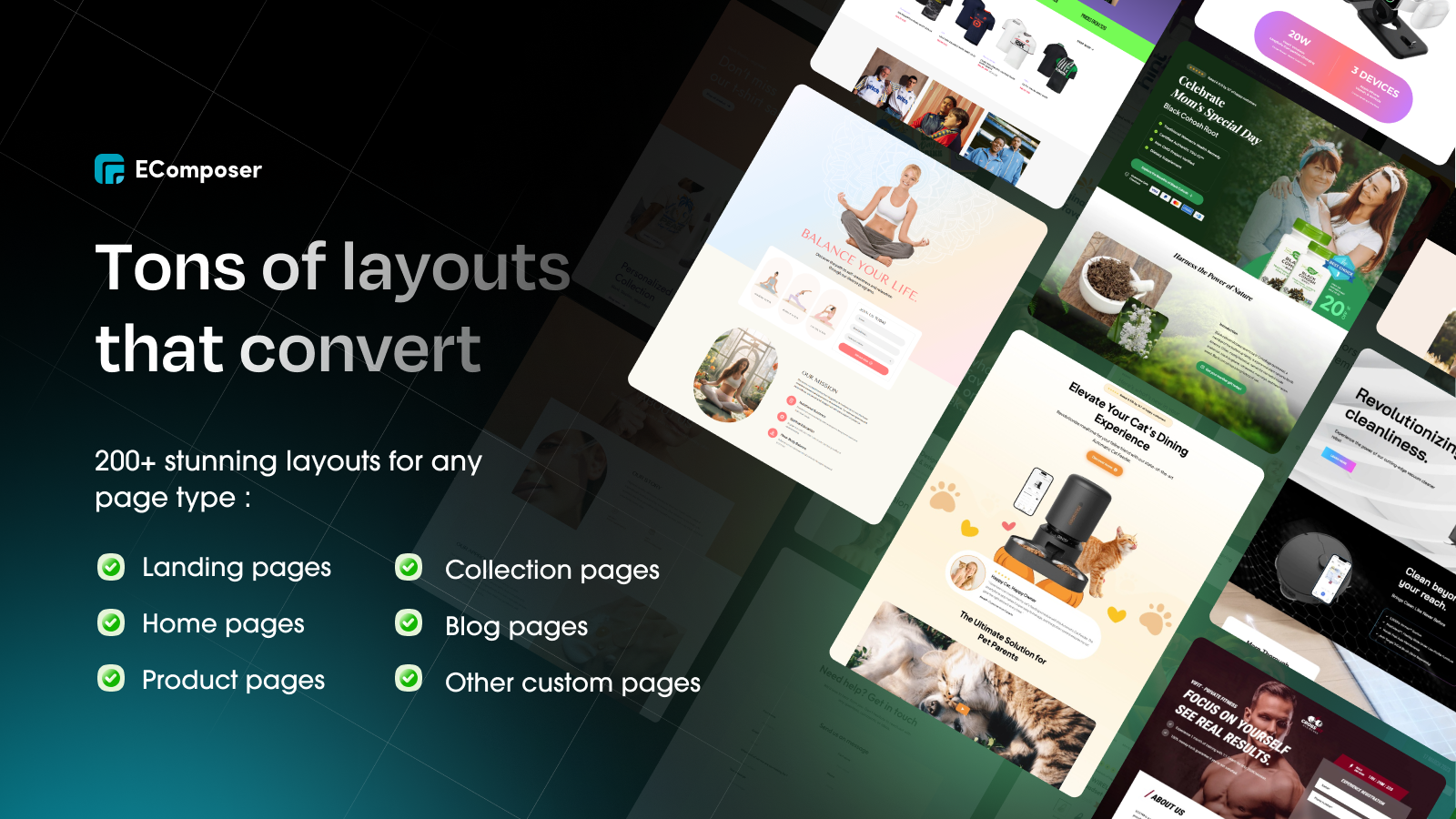



Slideshow is a section used to display banner sliders for promoting products or collections.
It supports multiple slides with flexible content such as images, text, and buttons.
You can customize layout and content positioning separately for desktop and mobile.

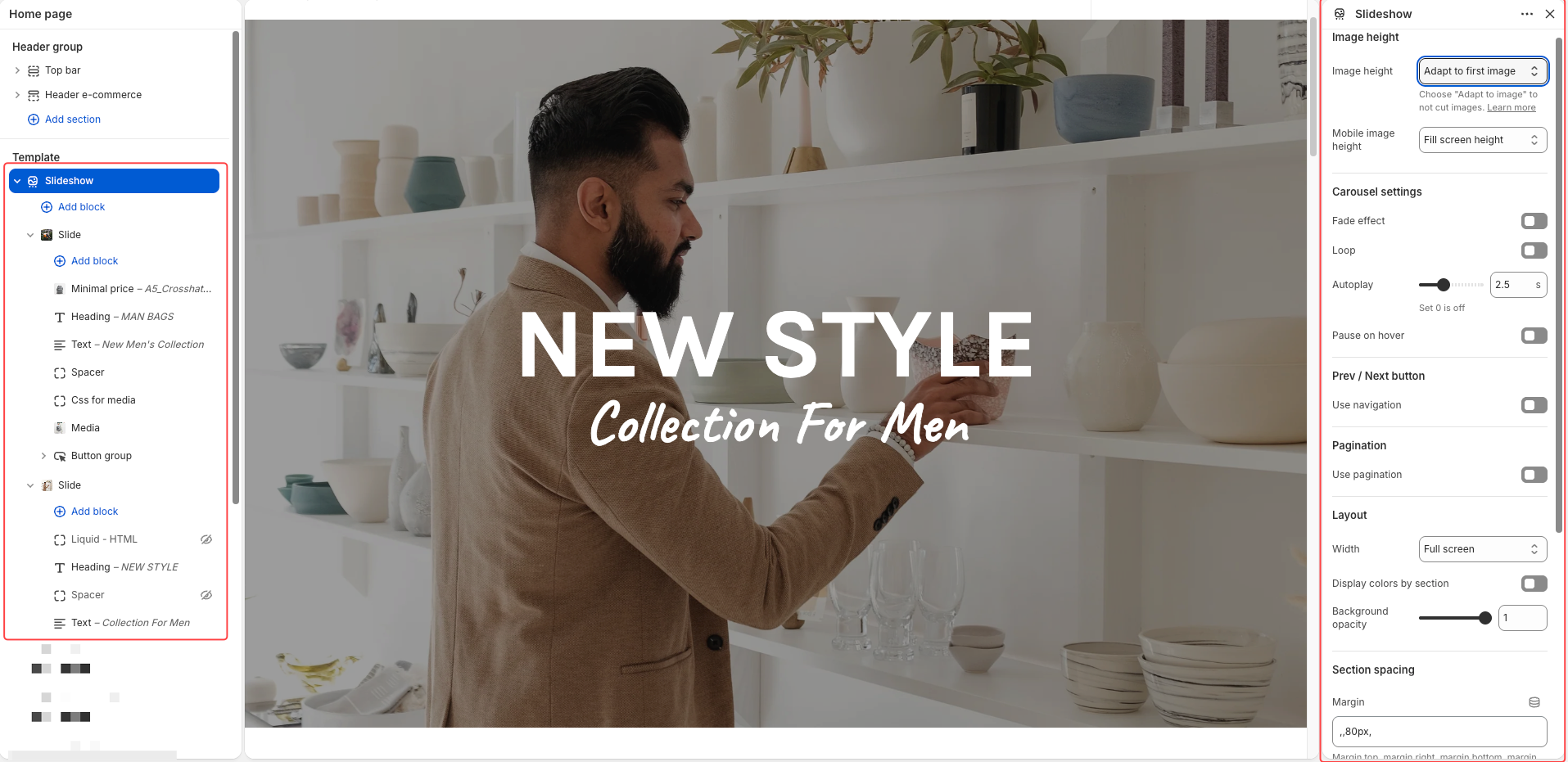
1. Section Settings
Image height – Set slide height based on image or custom value
Mobile image height – Choose height behavior optimized for mobile display
Mobile fixed height – Define fixed height specifically for mobile screens
Fade effect – Enable smooth transition effect between slides
Loop – Repeat slides continuously after reaching the last one
Autoplay – Automatically switch slides after a set duration
Use navigation – Show or hide previous and next buttons
Use pagination – Show or hide dots indicating slide position
Width – Display section full width or within container
Display colors by section – Apply color scheme defined at section level
Background opacity – Adjust overlay opacity for better text visibility
Margin / Margin (Mobile) – Set outer spacing for desktop and mobile
Padding – Set inner spacing between content and section edges
2. Slide Block & Child Blocks
2.1 Slide Block (Main Block)
Image – Select main image displayed on desktop
Mobile image – Select optimized image for mobile display
Overlay – Add color overlay to improve text readability
Link URL – Make entire slide clickable with assigned link
Open in new tab – Open slide link in a new browser tab
Color scheme – Apply color style for text and buttons
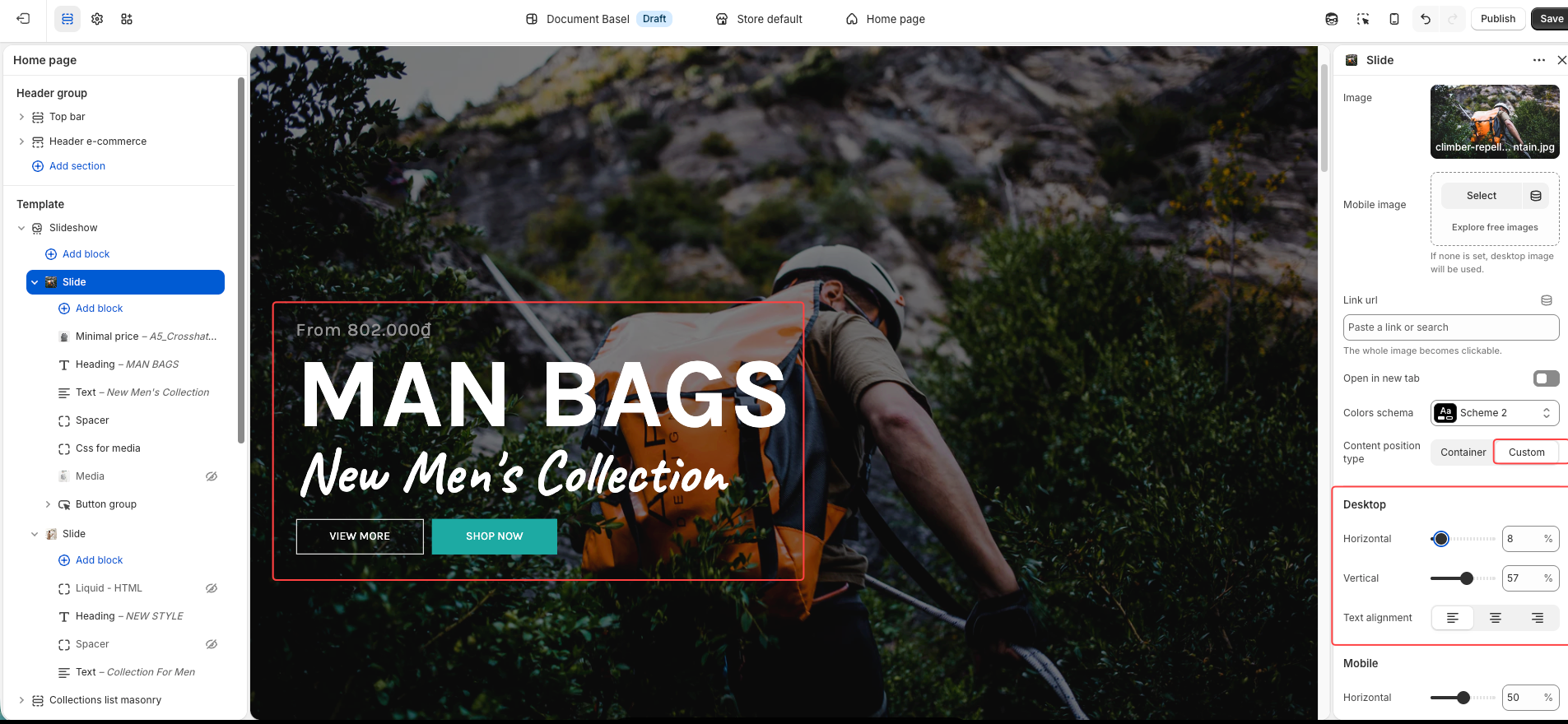
Content position type – Choose container-based or custom positioning
Content position – Adjust content placement horizontally and vertically
Text alignment – Align text left, center, or right
To manually control content position → select Custom
2.2 Child Blocks inside Slide
Content
Heading – Display main title with strong visual emphasis
Text – Add short description to support slide message
Custom Text – Show formatted text with more flexible styling
Minimal Price – Display price in “From” format
Action
Button – Add single call-to-action button
Button Group – Display multiple buttons in one row
Buy Now – Create quick purchase button linking to product
Custom Button – Add advanced button with custom style
Layout & Advanced
Media – Add extra image or video to enhance visuals
Spacer – Create spacing between elements for better layout
Group – Combine blocks into a structured group
Liquid - HTML – Insert custom code for advanced use cases
Custom – Use flexible block for special customization needs
3. Notes
Avoid placing too much content in a single slide
Use properly sized images for better display quality
Keep content short and clear for better user experience
Use Custom positioning when precise layout control is needed