


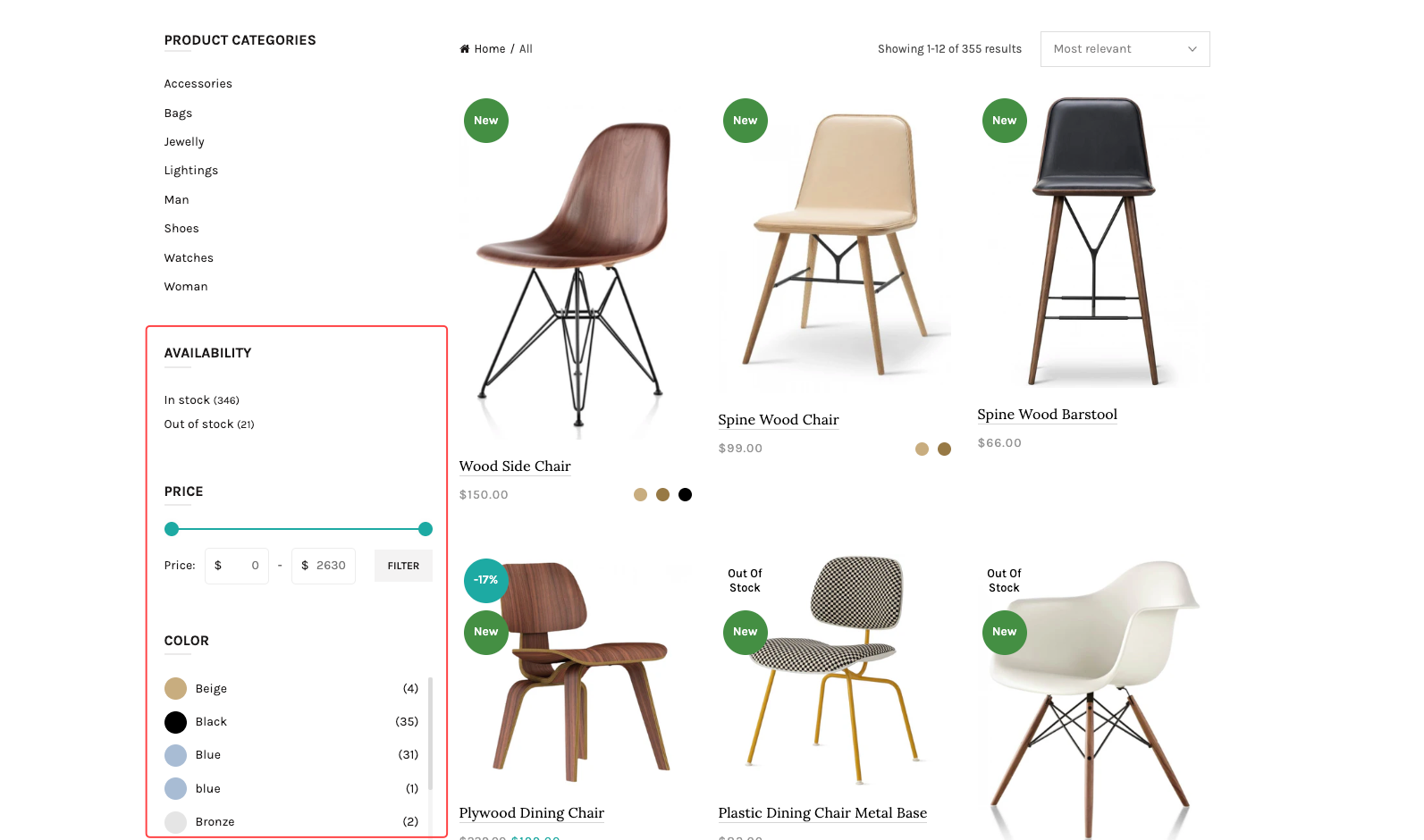
Collection Filters allow customers to narrow down products in a collection page based on specific criteria such as product type, vendor, availability, price, variant options, metafields, and more.
This helps improve the shopping experience by making it easier for customers to find the products they are looking for.
Requirements
To add and manage collection filters, you need to install the official Shopify app:
After installing the app, you can create and configure filters directly from your Shopify admin.
How to Add Filters
Install the Search & Discovery app.
Open the app from your Shopify admin.
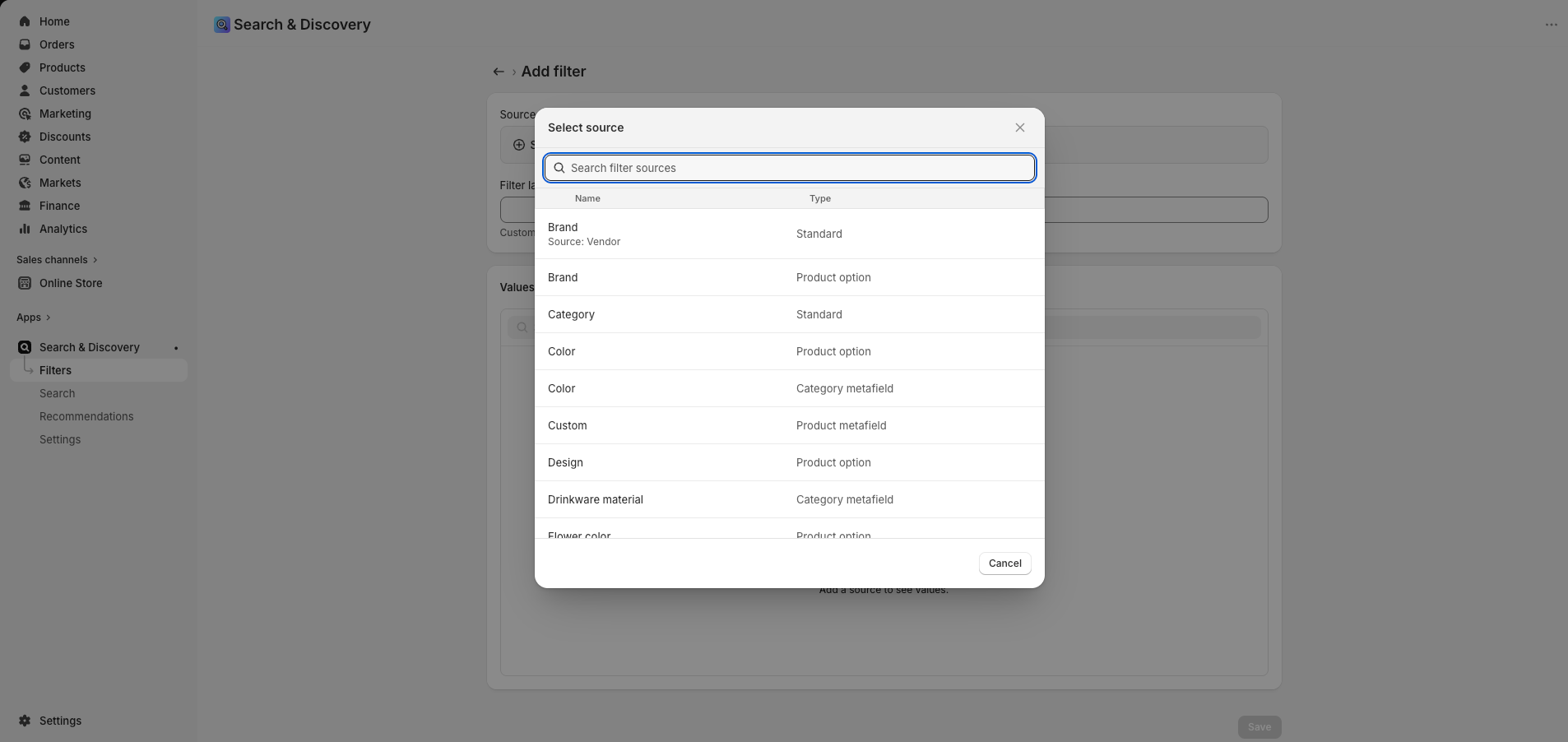
Navigate to Filters.
Add the filters you want to display on collection pages.
Save your changes.
Supported filter types may include:
Product availability
Price
Product type
Vendor
Variant options (Size, Color, etc.)
Product metafields
Tags
How to Show Filters in the Theme
Go to:
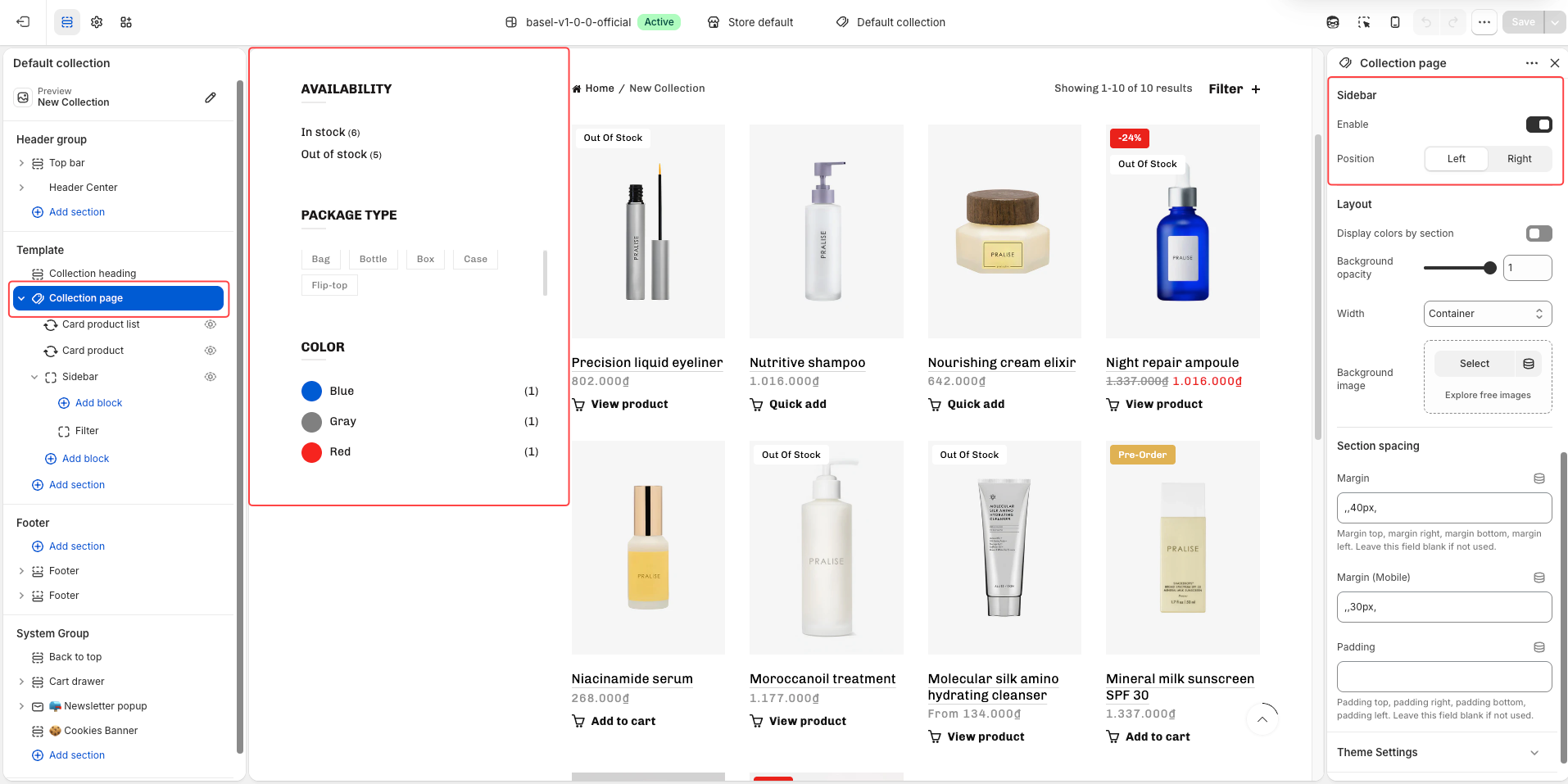
Collection template → Collection Page → Sidebar block
Then:
Click Add block → Filter
Add the filter block you want to display
If you want to display filters in a sidebar layout:
Open the Collection page section
Enable Sidebar
Choose sidebar position: Left or Right
Important Notes
Shopify has certain limitations and requirements for storefront filtering functionality.
Please read Shopify’s official documentation for full details and supported filter conditions:
Limitations
Some important Shopify filter limitations include:
There is a limit to the number of filters that can be displayed.
Not all product data types support filtering.
Metafield filters must follow Shopify-supported definitions.
Some filters may not appear if there are no matching products.
Filter behavior may vary depending on the theme implementation.
Please refer to Shopify’s official documentation for the latest updates and detailed technical limitations.