



If you want to display color swatches but they only appear as grey, this document will guide you through the correct setup. You can apply the same steps to color swatches on product pages, product cards, filters on the collection page, and anywhere else color swatches are used.
We will guide you through the following 2 ways to customize color:
Color swatch section of Theme: If you do not use Shopify Metaobject for color, you can follow this method to avoid re-adding color for each variant and product from scratch.
Metaobject Color of Shopify: If you already use Metaobject Color for variants, you can follow this method to automatically show the correct color swatch.

I. Color swatch section
Note: This part is for Kalles 5 and Ecomus
1. Create metaobject
Go to Settings > Metafields and metaobjects > Metaobjects > click 'Add definition'.
Name (required): Theme Swatch
Type: theme_swatch
In Field > click 'Add field'. You need to set up with the following:
Type: JSON
Name (required): Colors
Required field: Checked
Click 'Add' > click 'Save'. Please follow this video:
2. Add entry and copy color code
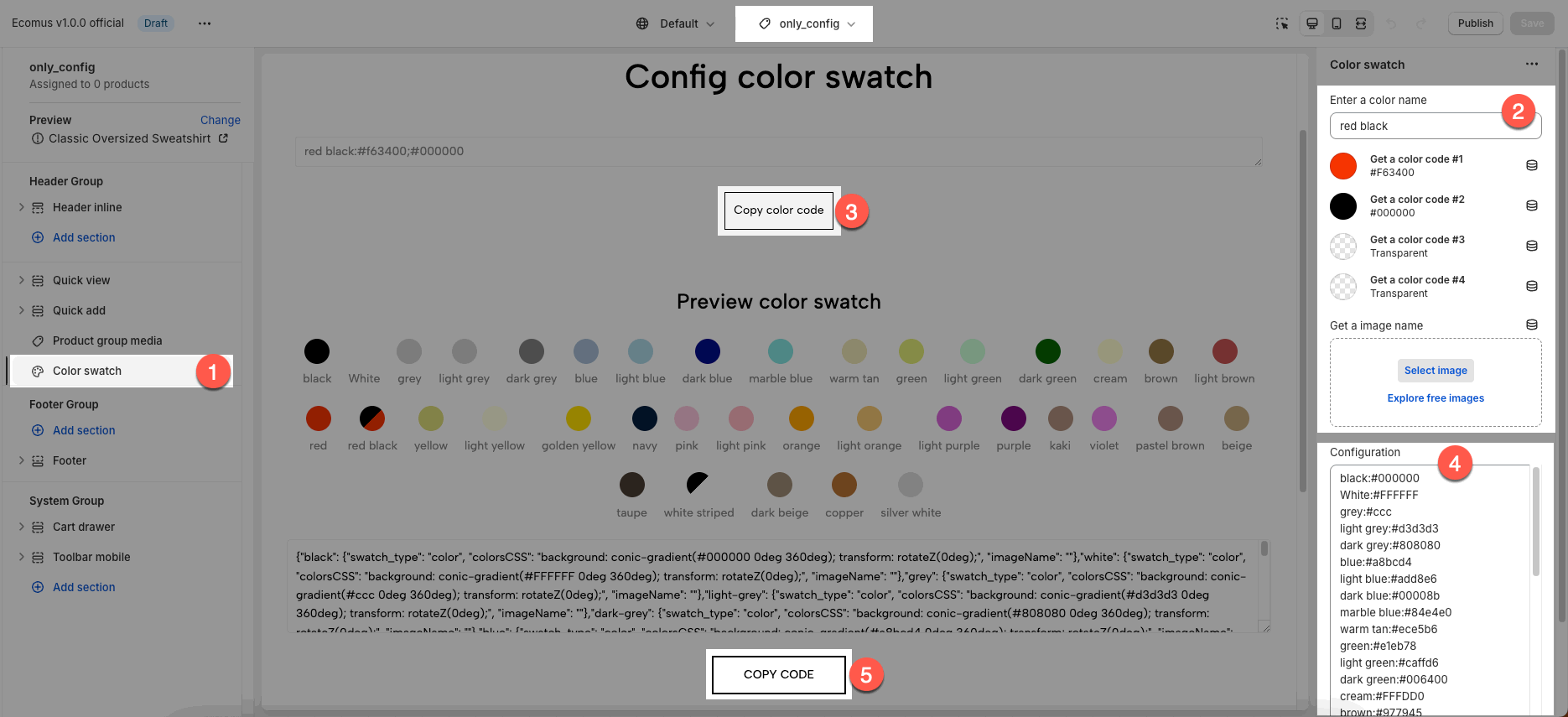
Go to Theme Customize > Products > only_config template > open 'Color swatch' section.
Click on 'COPY CODE' to use the default colors of the theme.
Go to Content > Metaobjects > click 'Add entry' > paste color code in 'Colors' field.
Please follow this video:
3. Add your custom colors
The same step as section 2, you can add more color swatches with your own color/image, then copy and replace the new code in the entry.
Go to Theme Customize > Products > only_config template > open 'Color swatch' section.
Enter a color name: you enter the name for your color. This name must be matched with 'option values' in 'product variants'.
Choose colors or select an image for the swatch.
Click on 'Copy color code' > paste it to 'Configuration' text field in a new line > then click on 'COPY CODE'
3.1. Add color swatches
To add a new color swatches, you can follow the video below:
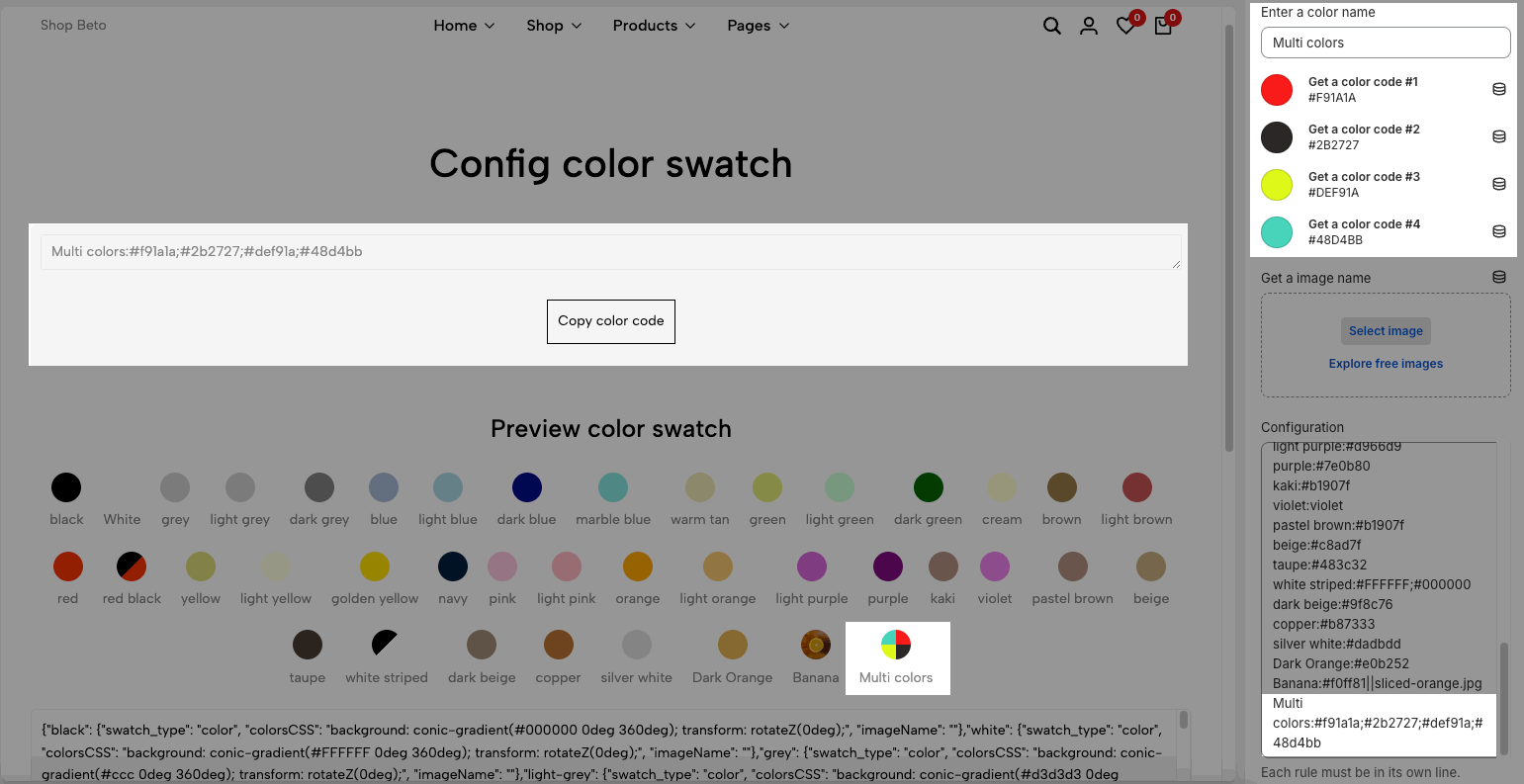
You can set up a swatch with more colors:
3.2. Add image swatches
To add a new image swatches, you can follow the video below:
4. Multi-languages
4.1. Color name
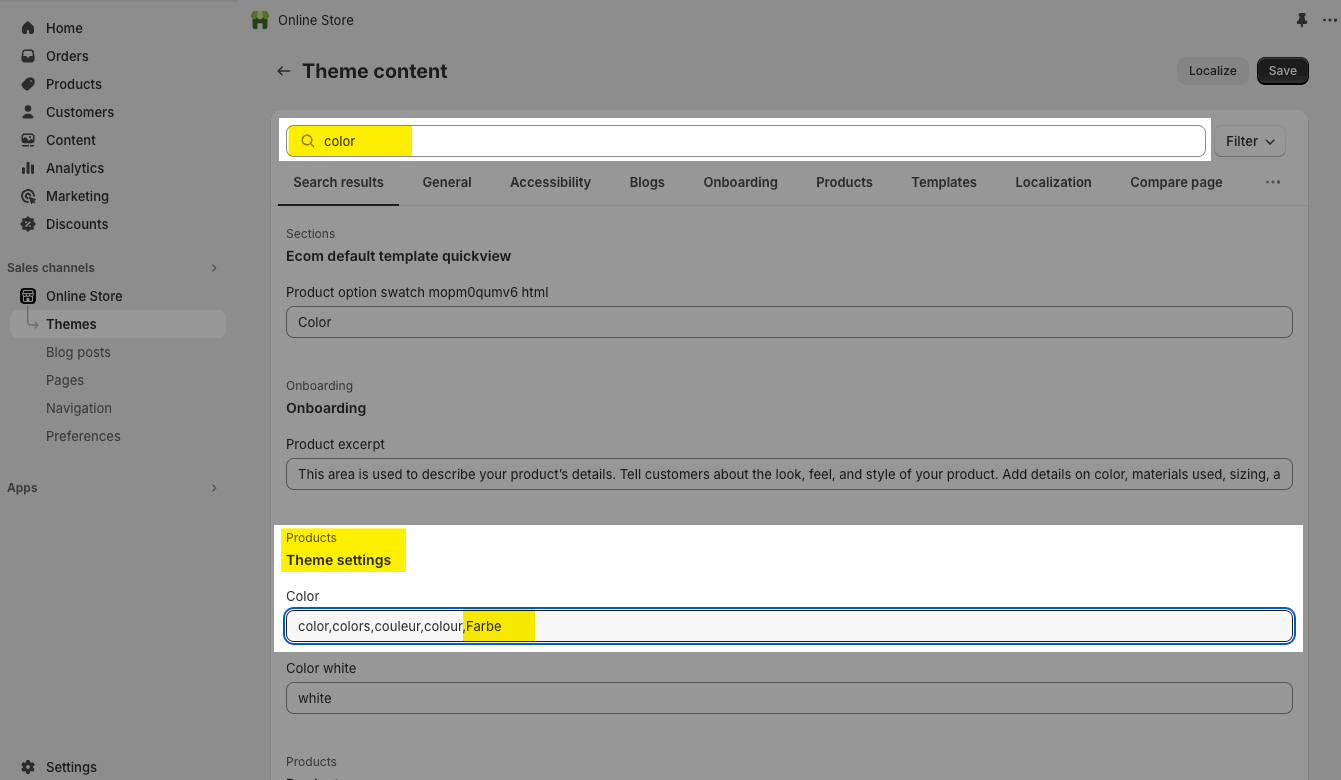
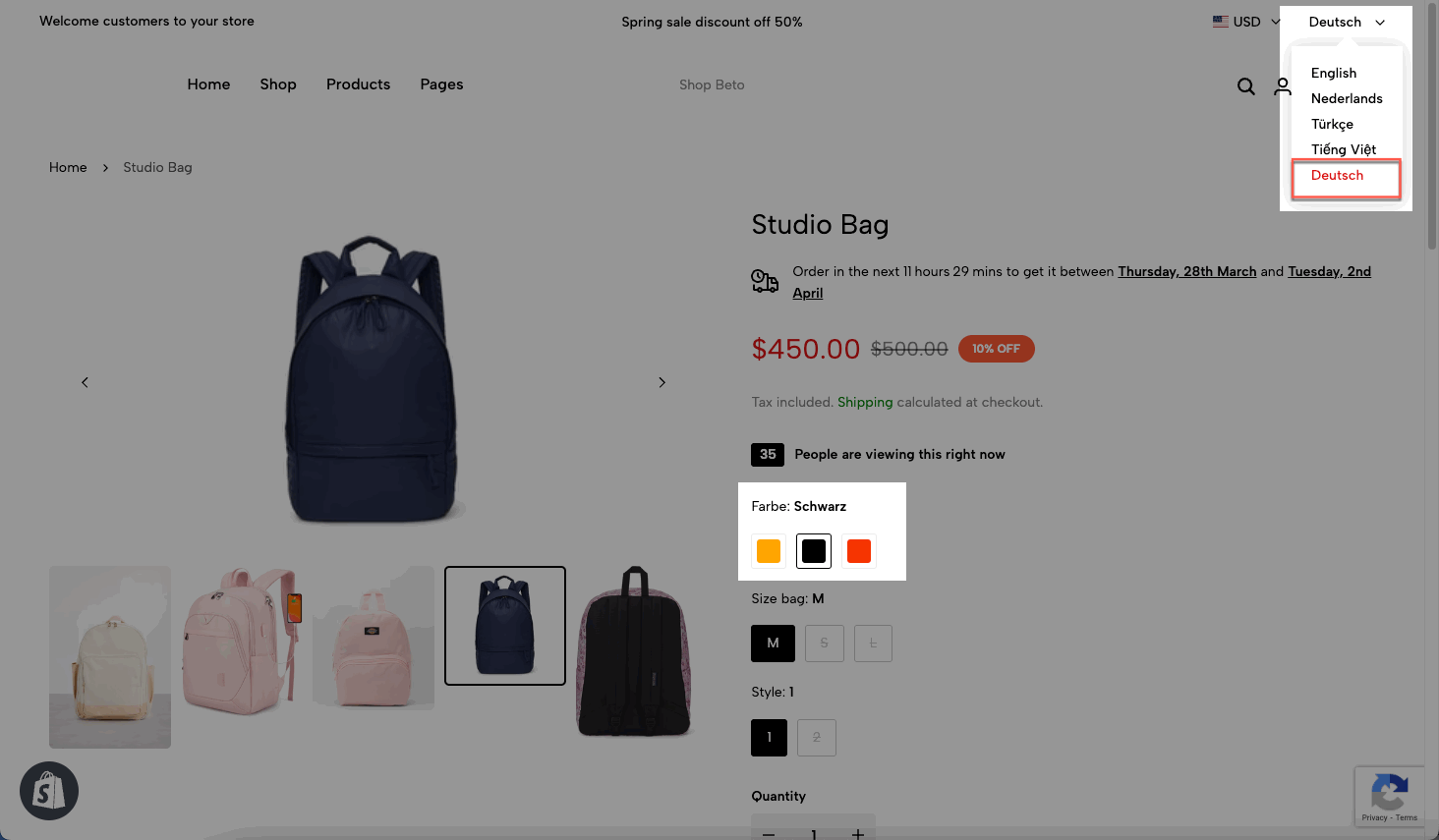
If the color style doesn't work in other languages, for example: if your option name is 'Farbe' (in German)
You go to Theme > Edit default theme content > search for 'color' > then fill in your option name.
Follow the image below:
4.2. Color value
For example, you translate your color values to German as this image
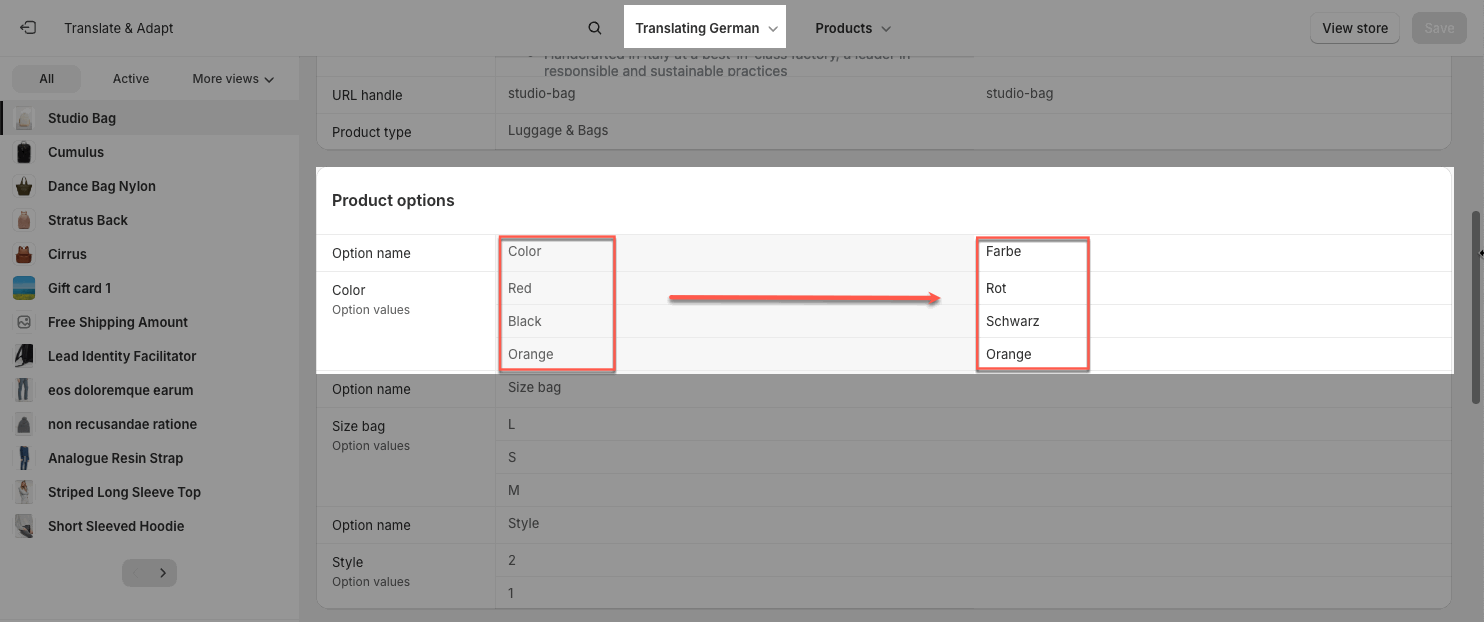
You need to add color values in other languages as well.
Step 1: Go to Theme Customize > Products > only_config template > open 'Color swatch' section > rename all colors in other languages > COPY CODE
Step 2: Go to Metaobject > Theme Swatch > Localize > paste color code for German.
Result: Color swatches work in German too.
II. Metaobjects Color
1. How to configure Color from metaobjects Color
After add color to product for the first time, you can see Metaobjects Color (added by Shopify) is displayed at Shopify admin. Please follow these steps to configure Color:
Step 1: Create Metaobject for Color
Go to the Shopify Settings > Metafields and metaobjects > Products > and configure it.
Step 2: Open Metaobjects Color
Go to the Shopify admin > Content > Metaobjects > Color and configure it.
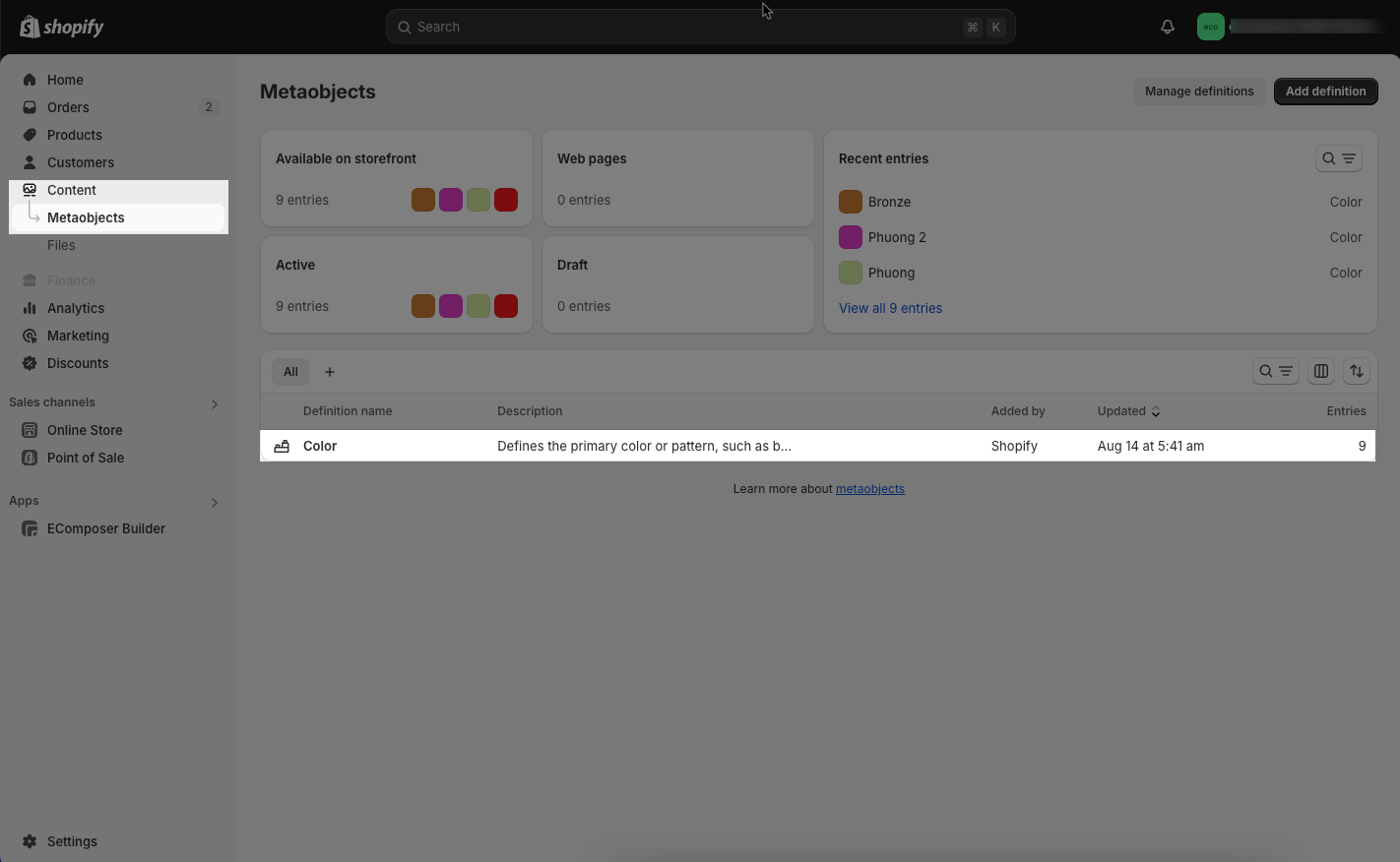
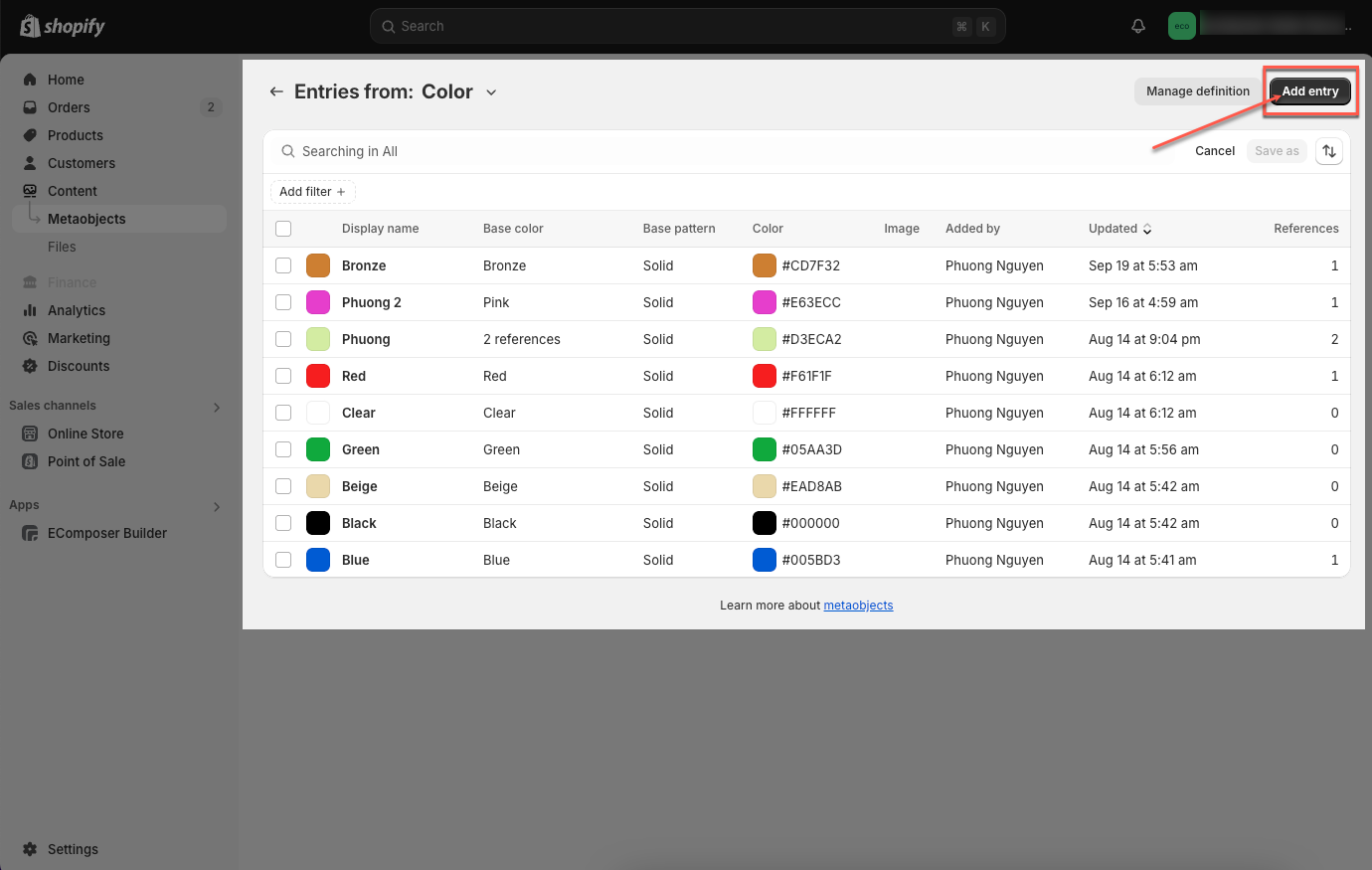
Step 3: Add entry
From interface Metaobjects Color > Add entry button
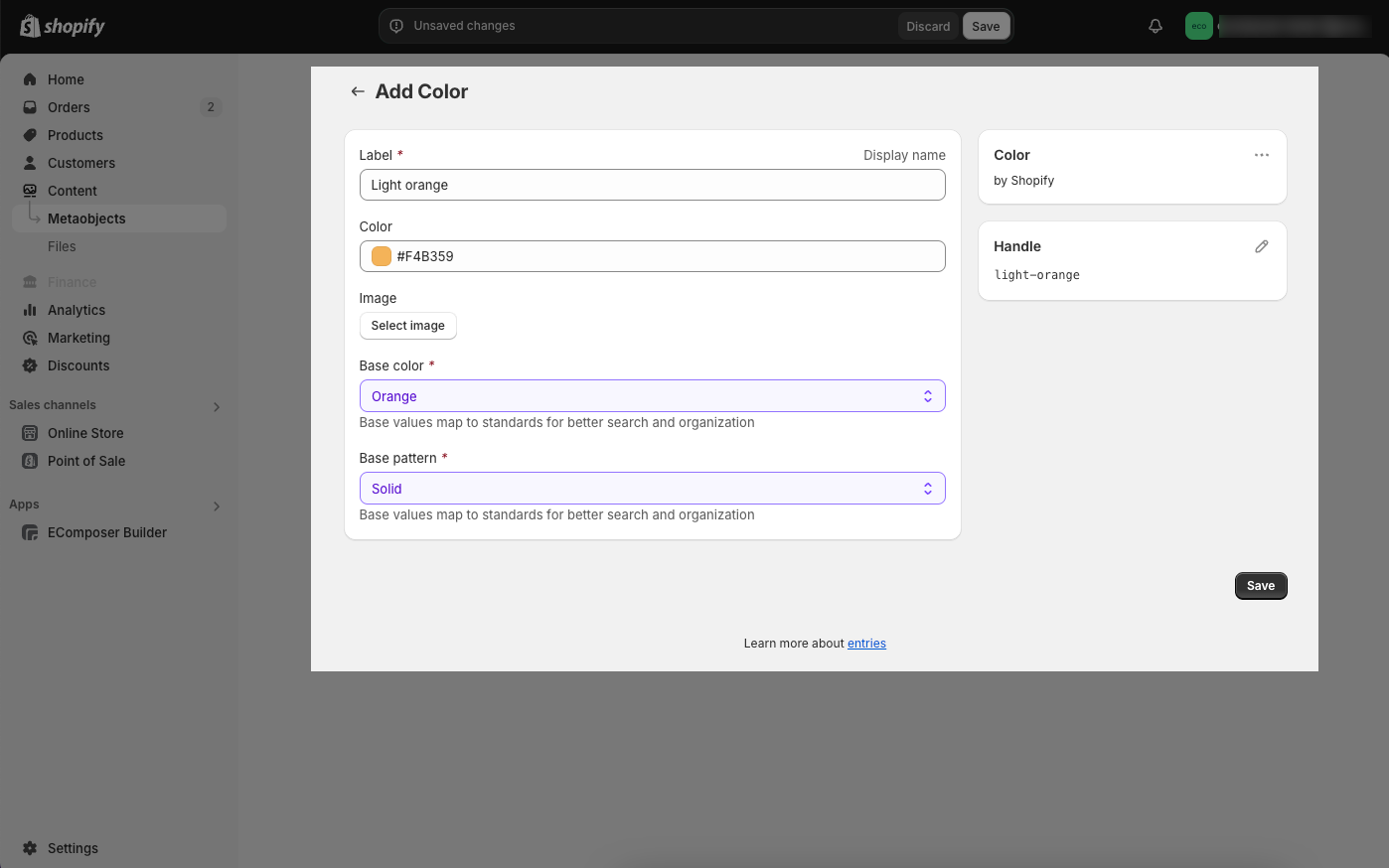
Step 4: Configure Color
You can enter Label, choose Color or Image and enter Base color, Base pattern you want. Then click Save button to save your color.
2. Add Color to the product
Step 1: Choose product you want to add color to.
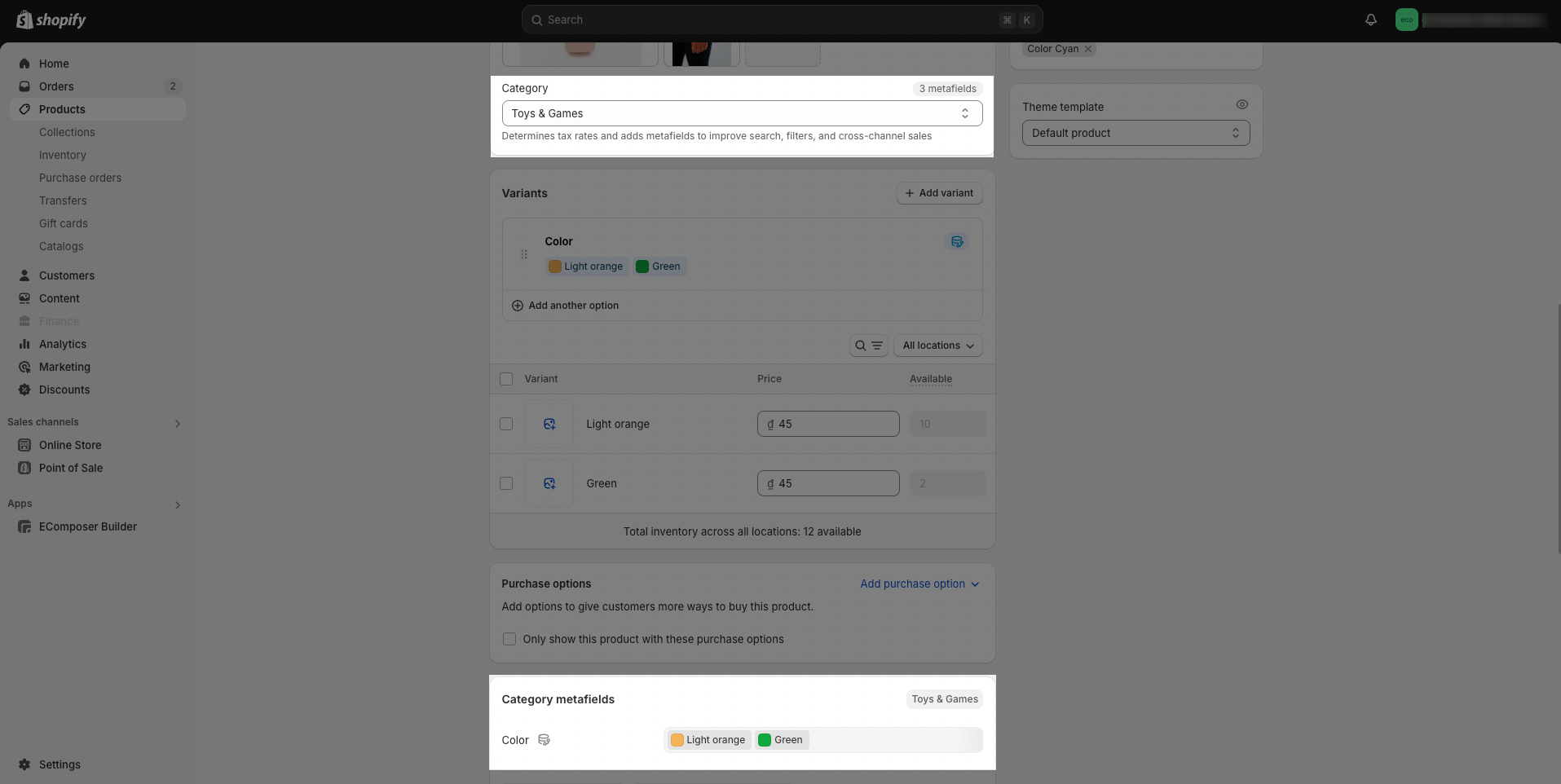
Step 2: Identify the category that contains metafields Color, then Category metafields will appear right below, and you can add the color you want.
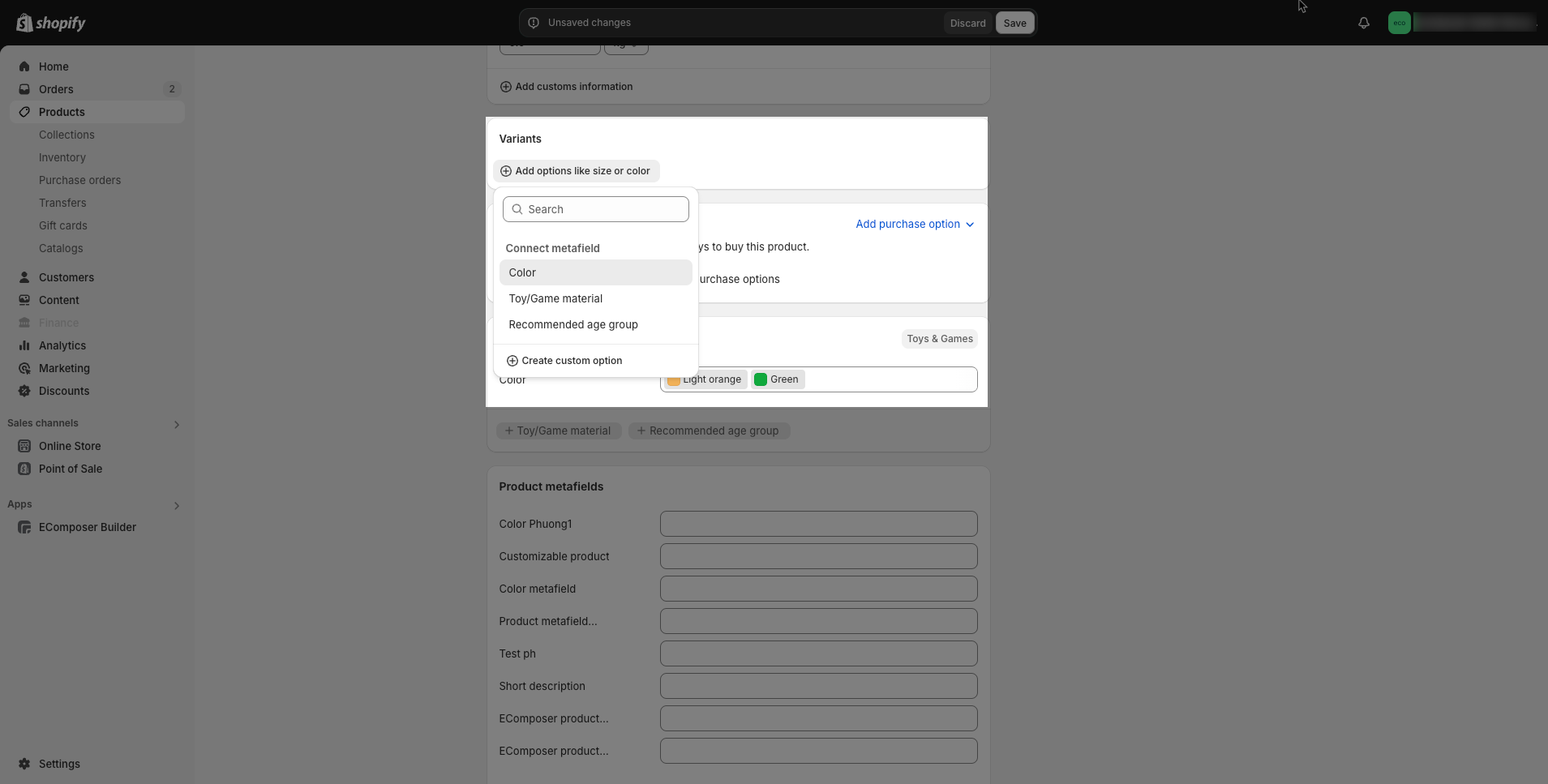
Step 3: Add Color variant
Step 4: Save configure and preview results