


Starting from Kalles 5.2.1 and Ecomus 2.2.2, the Multi Shipping Bar allows you to display a dynamic progress bar with reward milestones such as free shipping, discounts, or free gifts. This feature encourages customers to add more items by showing their progress toward the next benefit. It helps increase average order value and improves the overall shopping experience.

I. Configure Multi Shipping Bar Milestones
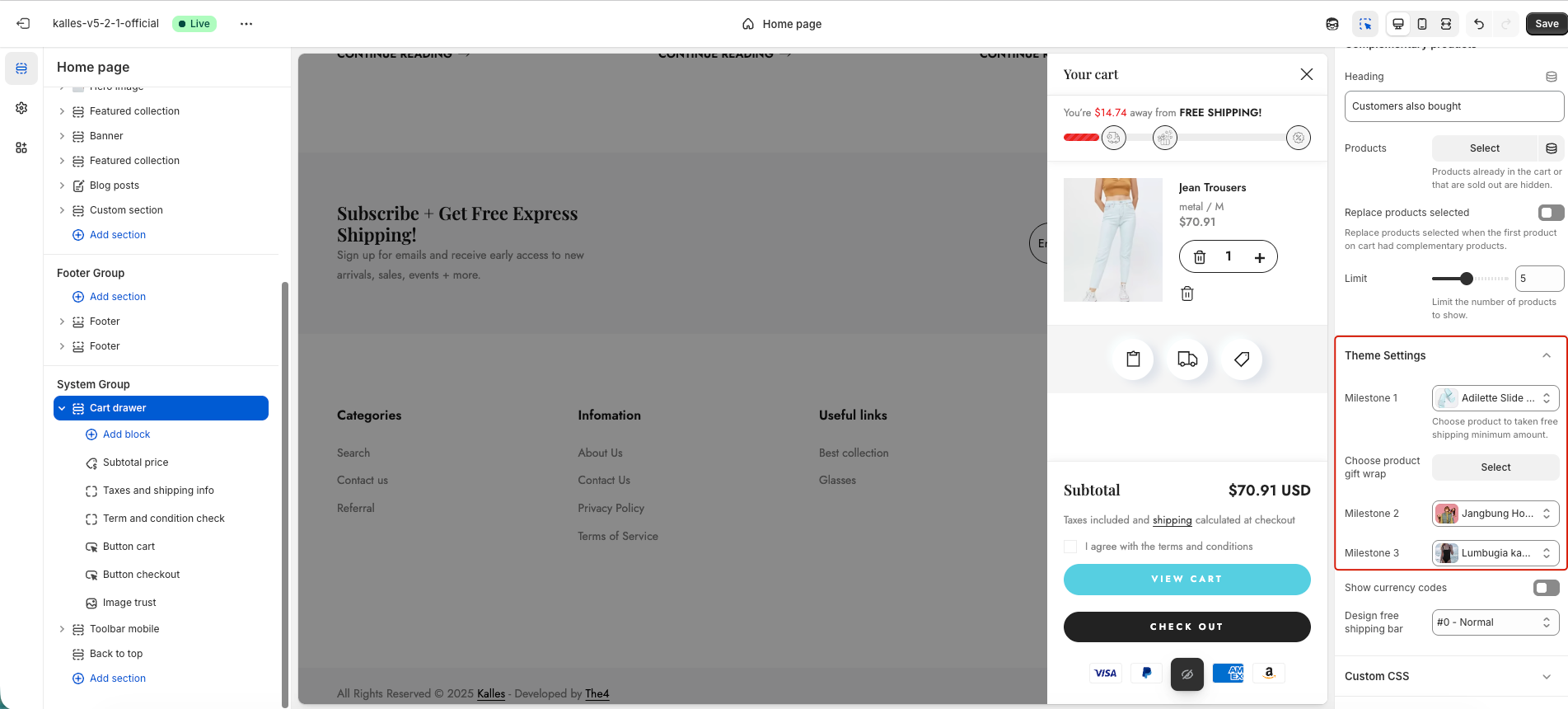
The Multi Shipping Bar uses three different reference products—one for each milestone.
Each product must have a different price (or different metafield value), and the values must increase in ascending order to ensure the progress bar unlocks correctly.
Milestone rule:
Each milestone must use a product with a higher price than the previous one:
Milestone 1 < Milestone 2 < Milestone 3.
1. Set a minimum amount for the Free Shipping Bar
You can configure the Free Shipping Bar amount using one of the two methods.
This amount is determined by the reference product assigned to Milestone 1.
Option 1 — Use product price
Go to Theme Settings > Cart
In Free shipping bar > Product, select the product for Milestone 1
Its price becomes the free-shipping threshold on the storefront
Option 2 — Use a custom metafield (recommended)
Create and assign metafield
Go to Settings > Metafields → Products → Add definition
Name: Free shipping money
Namespace/key:
theme.shipping_moneyType: Money
Enter a value in Free shipping money for product you will select in the Milestone 1.
This metafield value becomes the Free Shipping Bar threshold instead of the product price.
2. Set up “GET GIFT CARD”
This milestone adds a free product or gift card when the cart meets the required amount.
The threshold is determined by the reference product assigned to Milestone 2, which must have a price (or metafield value) higher than Milestone 1.
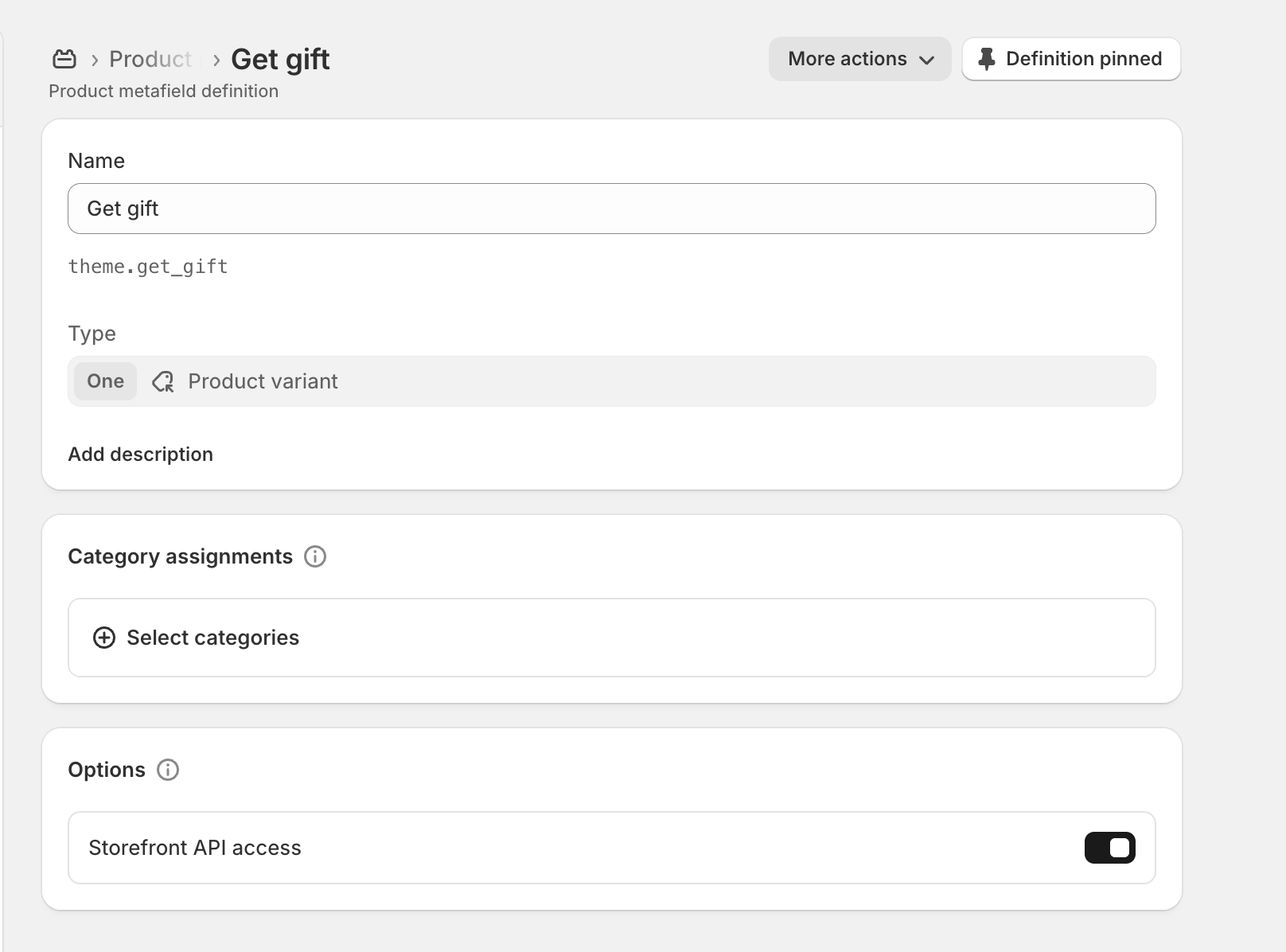
Step 1 — Create a metafield
Go to Settings > Metafields → Products → Add definition
Name: Get gift product
Namespace/key:
theme.get_giftType: Product variant
Step 2 — Create “Buy X Get Y” discount
Go to Discounts > Create discount → Buy X Get Y
Select the product/variant that will be added as the free gift
Set the spending condition to match Milestone 2
(Example: ≥ $200 — this must be higher than Milestone 1)
Step 3 — Assign the gift product to the metafield
Open the product assigned to Milestone 2
Go to Metafields → Get gift product
Select the gift variant (“Y” product)

Important notes
Milestone values must increase: Milestone 1 < Milestone 2 < Milestone 3
Supports both physical and gift card products
Only one variant can be assigned
If the gift is out of stock, it will not be added
3. Set up “GET 5% OFF”
This milestone applies a 5% discount when the cart reaches a specific amount.
The threshold is determined by the reference product assigned to Milestone 3, which must have a price (or metafield value) higher than Milestone 2.
Step 1 — Create the discount
Go to Discounts > Create discount → Amount off order
Discount value: 5%
Minimum purchase: $500 (example)
Allow combinations with other discounts
Step 2 — Set milestone amount
In Multi Shipping Bar settings, set Milestone 3 = a third product
This product must have a price/metafield value higher than Milestone 1 and 2
Important note
Milestone thresholds must increase in ascending order:
Milestone 1 < Milestone 2 < Milestone 3
This ensures each reward unlocks properly as the cart value increases.
II. Configure Content of Multi Shipping Bar
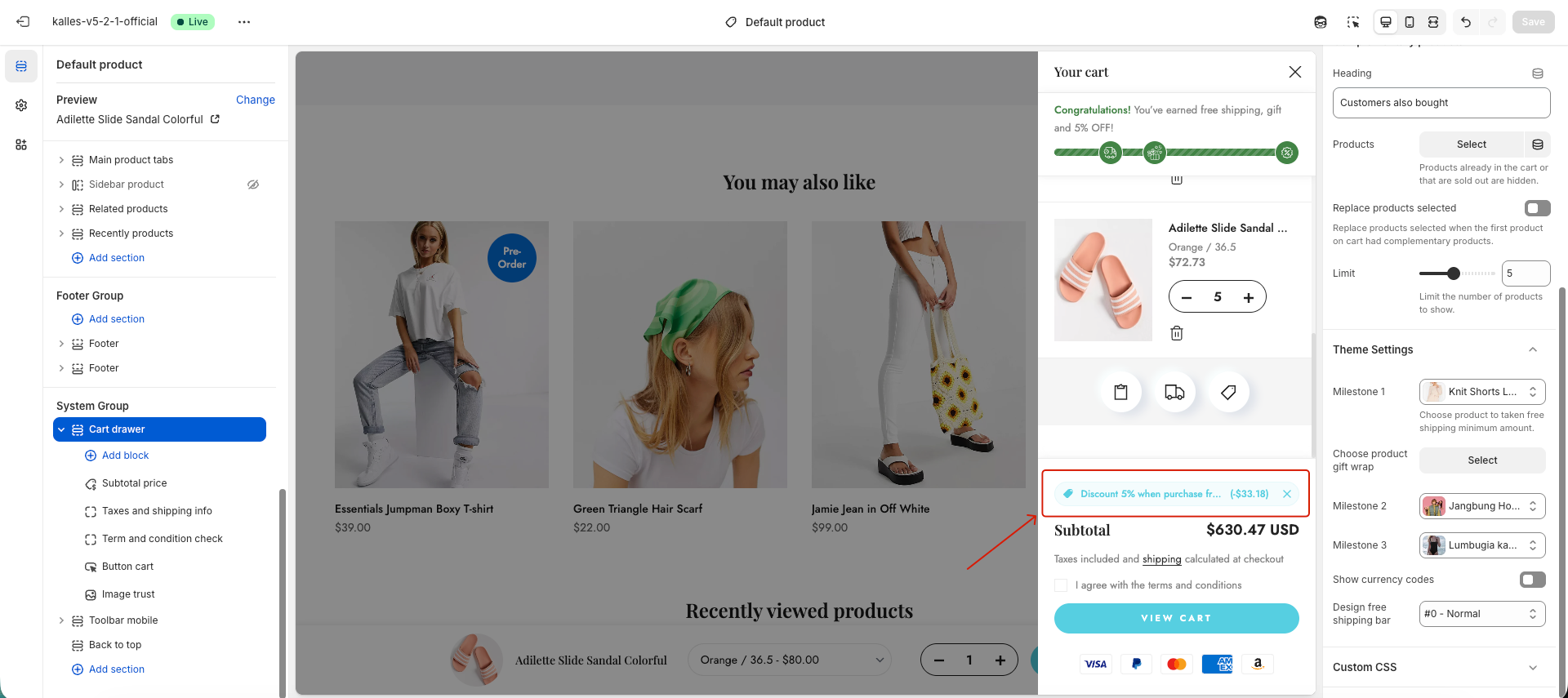
To change content for example: "Congratulations! You’ve earned free shipping, gift and 5% OFF!". You will access Edit theme default content => Find the text and change it.
III. Configure Shipping Rate in Shopify Admin
The Free Shipping Bar only displays the threshold on the storefront.
To ensure customers actually receive free shipping at checkout, you must configure a matching Shopify shipping rate.
Example
If the Free Shipping Bar shows $50, then create a shipping rate:
Condition: Order price ≥ $50
Shipping cost: $0 (free)
This ensures consistency between the storefront progress bar and real checkout behavior.
For detailed instructions, refer to Shopify’s official guide:
Set up your shipping rates – Shopify Help Center