


This document covers how to customize the Collection Page Section, including adding a collection description, expanding filter options, enabling always-visible filters (without using a drawer), and configuring the sidebar to optimize the product browsing experience.
1. Collection description
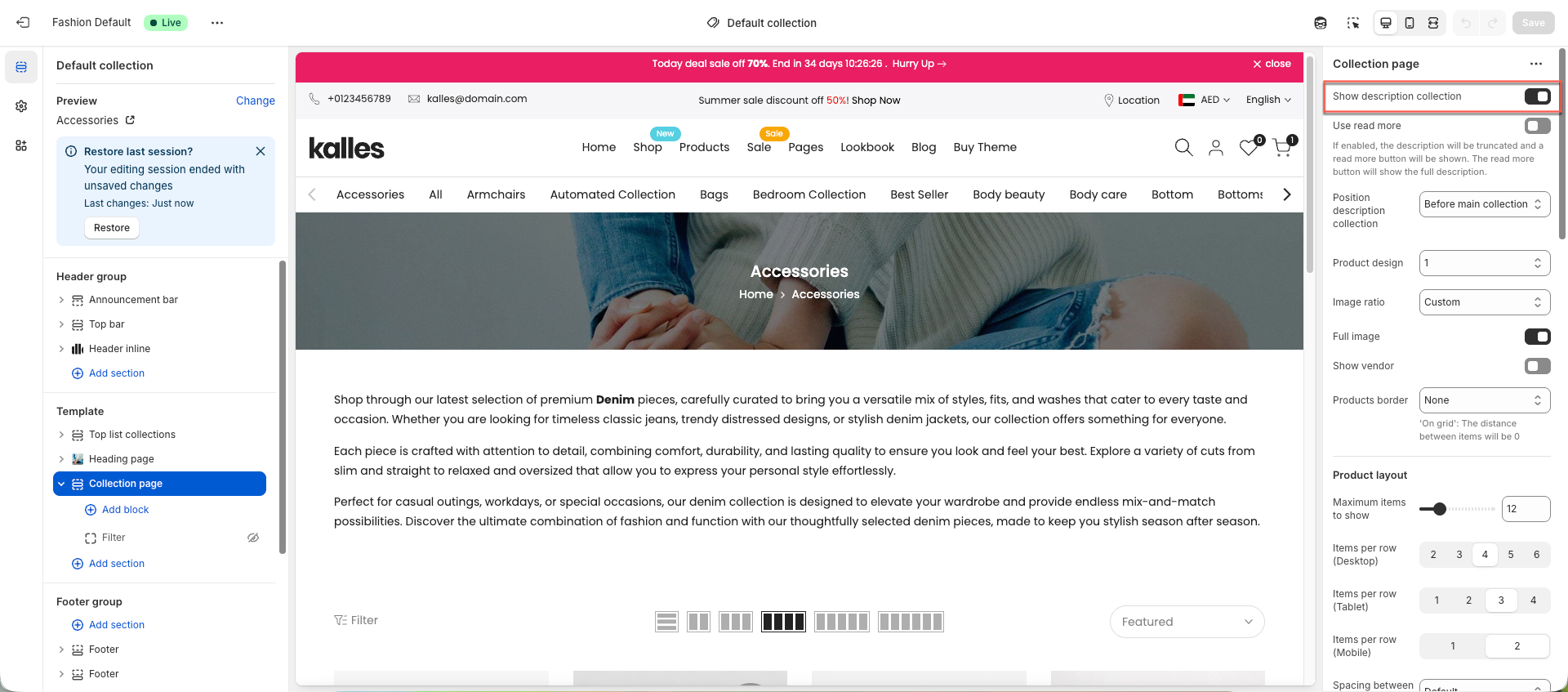
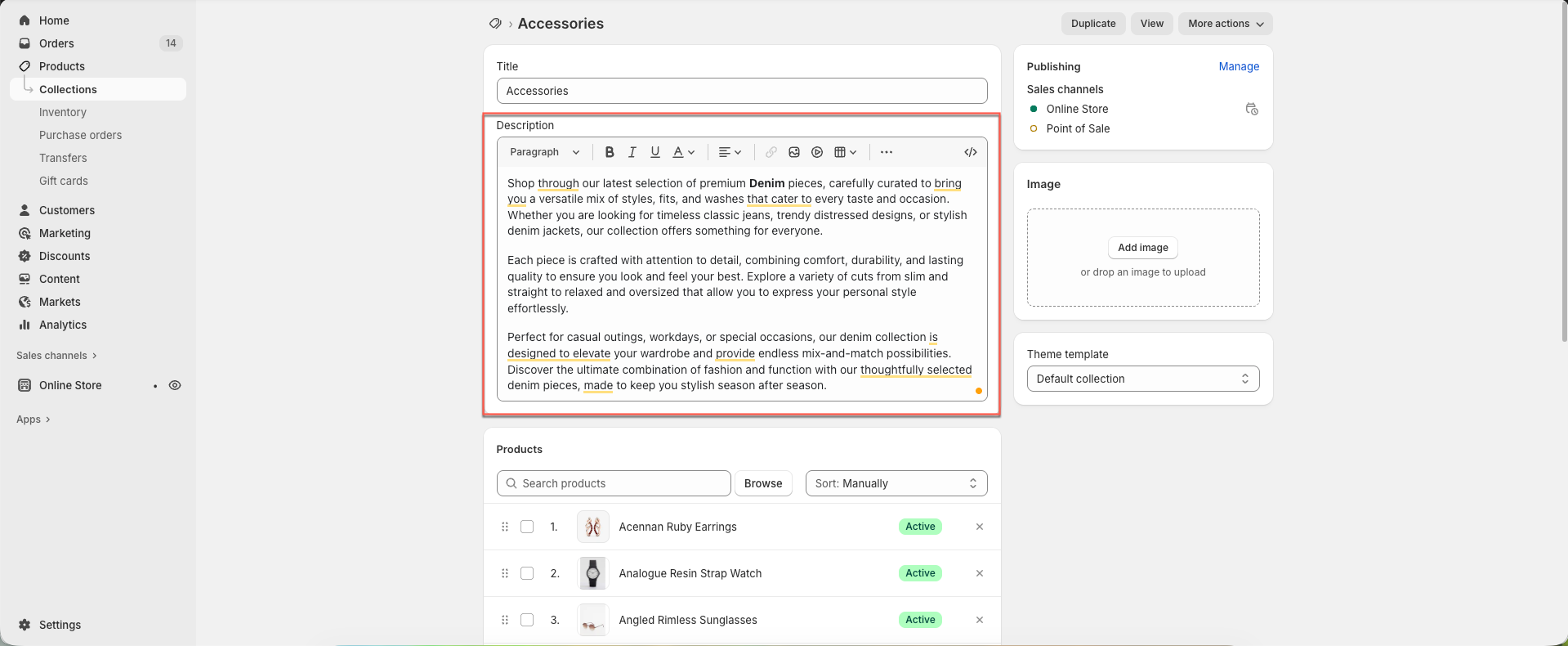
To display the collection description, enable the Show Description Collection option. The content will be pulled from the description you added for the collection in the Shopify admin.
Additionally, you can adjust the position of the description to appear either above or below the products. We also support the Read More option, allowing you to show a shortened version of the description with the ability for customers to expand and read the full text.
2. Filters
2.1 Adding more filter options
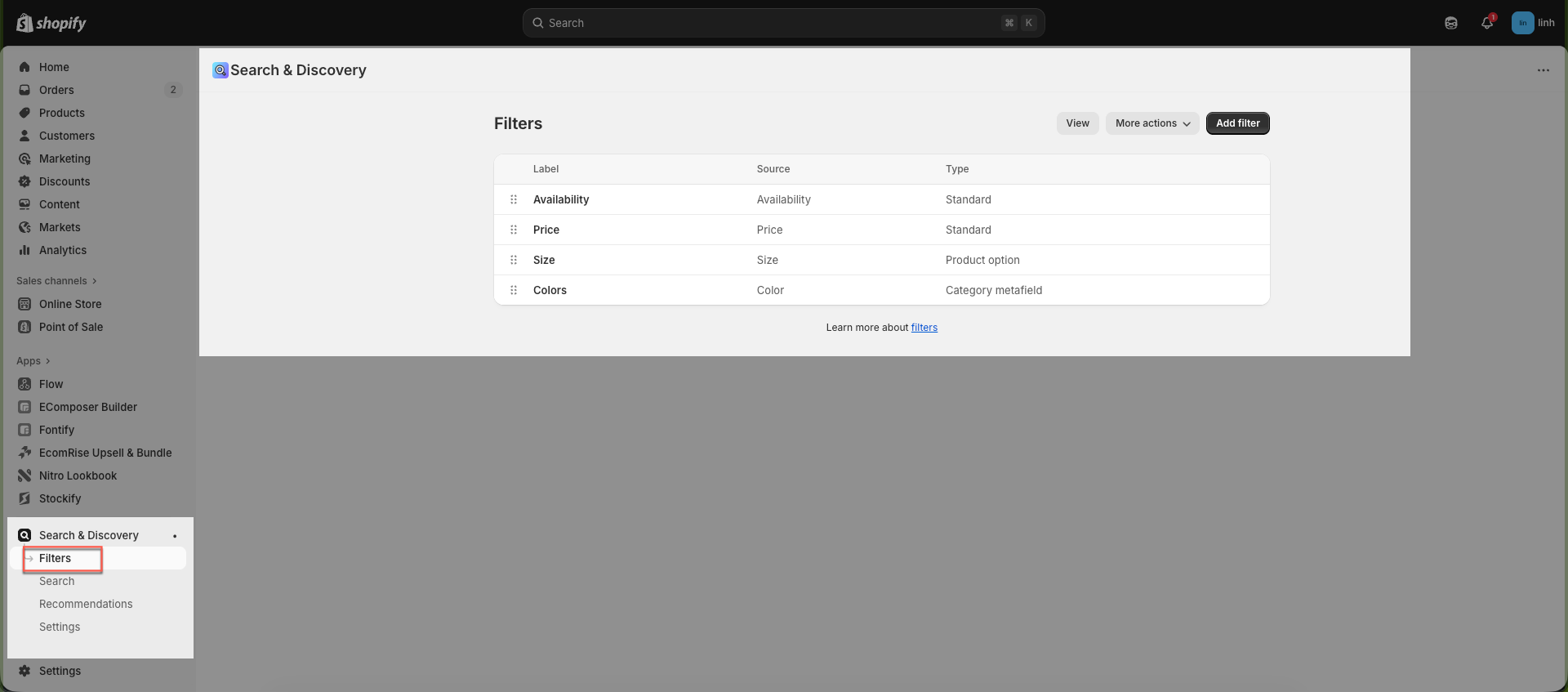
In the theme, filters are displayed using the Search & Discovery app. This means the theme only handles the front-end display of filters.
If you want to add or remove filter options, you will need to make these changes directly within the app. The theme will automatically reflect any updates you make there.
2.2 Making filters always visible
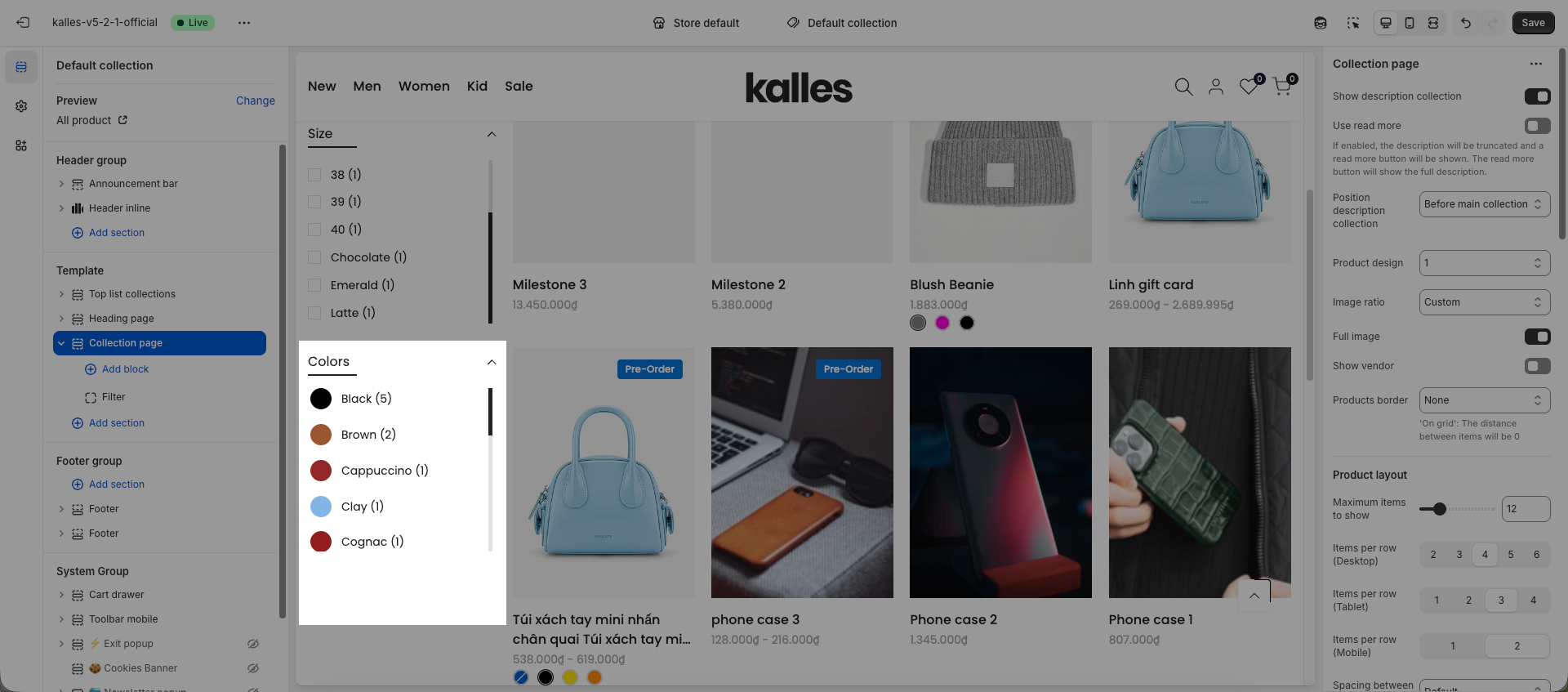
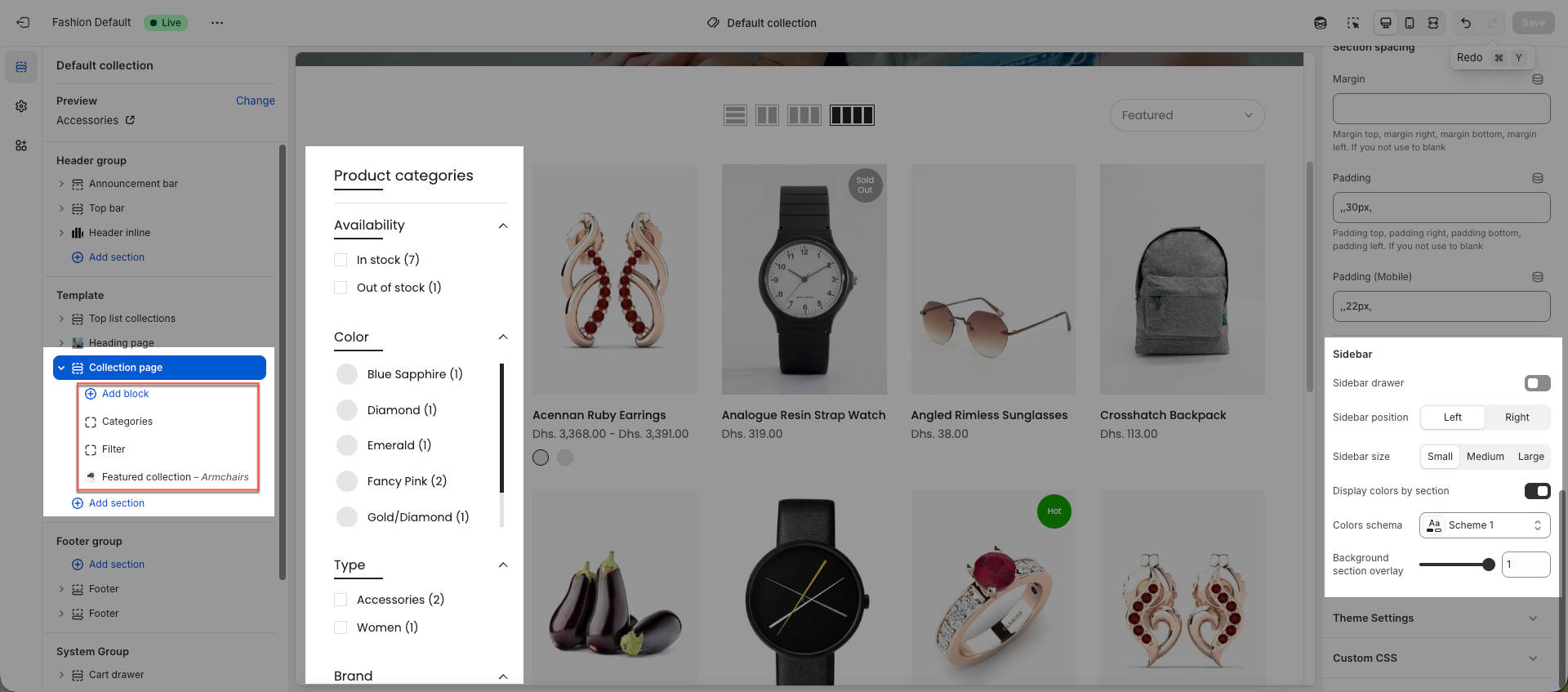
To make filters always visible, add the Filter block within the Sidebar and disable the Sidebar Drawer option. This will ensure that the filters are displayed permanently on the page, rather than hidden in a collapsible drawer.
You can refer to the video below:
3. Sidebar
You can set the sidebar to be always visible by default or use it as a sidebar drawer that opens when clicked. Within the sidebar, you can add multiple items such as Categories, Filters, Galleries, or other custom blocks depending on your store needs.
4. Sort by
To change how products are sorted in a collection, you need to update the sort order in the collection settings in Shopify.
5. Color swatches filter
To display color swatch filters, you need to configure the color swatches. Please follow this document.